Friday, May 20, 2016

Read Emails From Inbox Using Java?


Outlook Settings:

The following settings are the official POP, IMAP and SMTP settings provided by Microsoft for Office 365. You can find these settings in the following locations:

1. In the Outlook Web App, go to Settings.

2. In the Search box at the top, type "POP and IMAP"

3. Click the Sync Email tab on the left-hand menu to edit the POP and IMAP settings.

Gmail Settings:

Check that IMAP is turned on

  1. On your computer, open Gmail.
  2. In the top right, click Settings See all  settings.
  3. Click the Forwarding and POP/IMAP tab.
  4. In the "IMAP access" section, select Enable IMAP.
  5. Click Save Changes.

POP settings

Server name: outlook.office365.com
Port: 995
Encryption method: SSL

Server name: pop.gmail.com
Port: 995
Encryption method: SSL

IMAP settings

Server name: outlook.office365.com
Port: 993
Encryption method: SSL

Server name: imap.gmail.com
Port: 993
Encryption method: SSL

SMTP settings

Server name: smtp.office365.com
Port: 587
Encryption method: TLS or STARTTLS

Server name: smtp.gmail.com
Port SSL: 465
Port for TLS/STARTTLS: 587


import java.io.IOException;
import java.util.Properties;
import javax.mail.Address;
import javax.mail.Folder;
import javax.mail.Message;
import javax.mail.MessagingException;
import javax.mail.NoSuchProviderException;
import javax.mail.Session;
import javax.mail.Store;
import javax.mail.internet.MimeMessage.RecipientType;

public class GmailMailVerification {

private static String user = xyz@gmail.com;
private static String password = "abcd";
final static int MAX_MESSAGES = 10;

public static void main(String argv[]) {
//Read username and password from argments
for (int optind = 0; optind < argv.length; optind++) {
if (argv[optind].equals("-U")) {
user = argv[++optind];
} else if (argv[optind].equals("-P")) {
password = argv[++optind];
}
}

Properties props = System.getProperties();
props.setProperty("mail.store.protocol", "imaps");

try {
Session session = Session.getDefaultInstance(props, null);
Store store = session.getStore("imaps");
store.connect("imap.gmail.com", user, password);
System.out.println(store);
Folder inbox = store.getFolder("Inbox");
inbox.open(Folder.READ_ONLY);

System.out.println("Total messages = " + inbox.getMessageCount());
System.out.println("New messages = " + inbox.getNewMessageCount());
System.out.println("Unread messages = " + inbox.getUnreadMessageCount());
System.out.println("Deleted messages = " + inbox.getDeletedMessageCount());

// Get the last 10 messages
int end = inbox.getMessageCount();
int start = end - MAX_MESSAGES + 1;
Message messages[] = inbox.getMessages(start, end);

// Reverse the ordering so that the latest comes out first
Message messageReverse[] = reverseMessageOrder(messages);

// Print the messages out
System.out.println("message size = " + messages.length);
int i = 0;
for (Message message : messageReverse) {
i++;
dumpMessage(i, message);
}
} catch (NoSuchProviderException e) {
e.printStackTrace();
System.exit(1);
} catch (MessagingException e) {
e.printStackTrace();
System.exit(2);
}
}

/*
* reverse the order of the messages
*/
private static Message[] reverseMessageOrder(Message[] messages) {
Message revMessages[] = new Message[messages.length];
int i = messages.length - 1;
for (int j = 0; j < messages.length; j++, i--) {
revMessages[i] = messages[j];
}
return revMessages;
}

private static void dumpMessage(int i, Message message) throws MessagingException {
System.out.println(i + " Message envelope");
System.out.println("------------------");

// FROM
for (Address address : message.getFrom()) {
System.out.println("FROM: " + address.toString());
}

// TO
for (Address address : message.getRecipients(RecipientType.TO)) {
System.out.println("To: " + address.toString());
}

// SUBJECT
System.out.println("Subject: " + message.getSubject());

// BODY MESSAGE
try {
String content = message.getContent().toString();
System.out.println("Body Message: " + content);
} catch (IOException e) {
e.printStackTrace();
}
}
}
---------------------------- OR ----------------------

String host = "pop.gmail.com";
String port = "995";
String userName = "xxxx@gmail.com";
String password = "xxxx";
boolean isconnected = false;
Store store = null;
Folder inbox;
Message[] messages;

/**
* Connect to mail client
* 
* @param host
* @param port
* @param userName
* @param password
* @return
*/
public boolean getConnection(String host, String port, String userName, String password) {
Properties properties = new Properties();

// ---------- Server Setting---------------
properties.put("mail.pop3.host", host);
properties.put("mail.pop3.port", port);
properties.put("mail.smtp.ssl.enable", "true");

// ---------- SSL setting------------------
properties.setProperty("mail.pop3.socketFactory.class", "javax.net.ssl.SSLSocketFactory");
properties.setProperty("mail.pop3.socketFactory.fallback", "false");
properties.setProperty("mail.pop3.socketFactory.port", String.valueOf(port));
Session session = Session.getDefaultInstance(properties);
if (!isconnected) {
try {
// Get the POP3 store provider and connect to the store.
store = session.getStore("pop3");
store.connect(userName, password);
isconnected = true;
// opens the inbox folder
System.out.println("Getting INBOX..");
inbox = store.getFolder("INBOX");
inbox.open(Folder.READ_WRITE);
System.out.println("Connected to mail client: " + isconnected);
System.out.println("Connected to mail via " + host);
} catch (Exception e) {
e.printStackTrace();
}
}
return isconnected;

}

public String getSubject() {
String subject = "";
try {
if (!isconnected) {
getConnection(host, port, userName, password);
}

// fetches new messages from server
messages = inbox.getMessages();
System.out.println("You have " + messages.length + " mails in your INBOX");

int i = messages.length - 1;
Message message = messages[i];
subject = message.getSubject();
System.out.println("Mail Subject: " + subject);
} catch (Exception e) {
e.printStackTrace();
}
return subject;
}

public String getBodyContent() {
String messageContent = "";
try {
if (!isconnected) {
getConnection(host, port, userName, password);
}
messages = inbox.getMessages();

int i = messages.length - 1;
Message message = messages[i];

String contentType = message.getContentType();

if (contentType.contains("multipart")) {
// content may contain attachments
Multipart multiPart = (Multipart) message.getContent();
int numberOfParts = multiPart.getCount();
for (int partCount = 0; partCount < numberOfParts; partCount++) {
MimeBodyPart part = (MimeBodyPart) multiPart.getBodyPart(partCount);
if (Part.ATTACHMENT.equalsIgnoreCase(part.getDisposition())) {
messageContent = getText(message);
} else {
// this part for the message content
messageContent = part.getContent().toString();
}
}
} else if (contentType.contains("text/plain") || contentType.contains("text/html")) {
Object content = message.getContent();
if (content != null) {
messageContent = content.toString();
}
}

} catch (Exception e) {
e.printStackTrace();
}
System.out.println("Mail Body Message: " + messageContent);
return messageContent;
}

public String getAttachmentFileName() {
String fileName = "";
try {
if (!isconnected) {
getConnection(host, port, userName, password);
}
messages = inbox.getMessages();
int i = messages.length - 1;
Message message = messages[i];

String contentType = message.getContentType();

if (contentType.contains("multipart")) {
// content may contain attachments
Multipart multiPart = (Multipart) message.getContent();
int numberOfParts = multiPart.getCount();
for (int partCount = 0; partCount < numberOfParts; partCount++) {
MimeBodyPart part = (MimeBodyPart) multiPart.getBodyPart(partCount);
if (Part.ATTACHMENT.equalsIgnoreCase(part.getDisposition())) {
// this part is attachment
fileName = part.getFileName();
}

}
}

} catch (Exception e) {
e.printStackTrace();
}
System.out.println("Attachment File Name: " + fileName);
return fileName;
}

public static String getText(Part p) {
try {

if (p.isMimeType("text/*")) {
String s = (String) p.getContent();
return s;
}

if (p.isMimeType("multipart/alternative")) {
// prefer html text over plain text
Multipart mp = (Multipart) p.getContent();
String text = null;
for (int i = 0; i < mp.getCount(); i++) {
Part bp = mp.getBodyPart(i);
if (bp.isMimeType("text/plain")) {
if (text == null)
text = getText(bp);
continue;
} else if (bp.isMimeType("text/html")) {
String s = getText(bp);
if (s != null)
return s;
} else {
return getText(bp);
}
}
return text;
} else if (p.isMimeType("multipart/*")) {
Multipart mp = (Multipart) p.getContent();
for (int i = 0; i < mp.getCount(); i++) {
String s = getText(mp.getBodyPart(i));
if (s != null)
return s;
}
}
} catch (Exception e) {
e.printStackTrace();
}
return null;
}

public void deleteEmails() throws Exception {
try {
if (!isconnected) {
getConnection(host, port, userName, password);
}
messages = inbox.getMessages();
for (int i = 0; i < messages.length; i++) {
Message message = messages[i];
message.setFlag(Flags.Flag.DELETED, true);
}
inbox.close(true);
store.close();
System.out.println("deleted mail");
} catch (Exception e) {
e.printStackTrace();
}
}

public void closeMailConnections() throws MessagingException {
if (null != inbox && null != store) {
try {
inbox.close(false);
store.close();
} catch (Exception e) {
e.printStackTrace();
}
}
}

Monday, May 16, 2016

Verifying ToolTip information by enabling javascript in browser


/**

* Verifying ToolTip information - Must enable the javascript in browser


*

* @param driver

* @param objectLocator

* @return


*/

public String toolTipInformation(WebDriver driver, String objectLocator) {

WebElement element;
String toolTipMsg = "";

try {
element = findElement(driver, objectLocator);
Actions builder = new Actions(driver);
builder.moveToElement(element).build().perform();
toolTipMsg = driver.findElement(By.id("tooltip")).getText();

} catch (Exception e) {
e.printStackTrace();
}
return toolTipMsg;
}

Note : example to enable javascript

FirefoxProfile profile = new FirefoxProfile(); profile.setPreference("javascript.enabled", false); - See more at: http://software-testing-tutorials-automation.blogspot.in/2015/01/how-to-disable-javascript-using-custom.html#sthash.NeR3YIhK.dpuf
FirefoxProfile profile = new FirefoxProfile();
profile.setPreference("javascript.enabled", true);


Friday, May 13, 2016

Selenium integration with Jenkins


Selenium integration with Jenkins

1.   Download Jenkins.war (https://jenkins.io/index.html)

2.       Open Command prompt, navigate to Jenkins.war file directory and type (java -jar jenkins.war) and click on enter.
Note: Should display "Jenkins is fully up and running" message on CMD

3.    Once Jenkins server is up and running, Open any browser and type the url  http://localhost:8080 

4.    Click on > Manage Jenkins

5.    Click on > Configure System

6.    Click on > Add JDK button (Under JDK Section).

7.    Uncheck "Install automatically" check box

8.    Give the “Name” as JAVA_HOME

9.    Give the "JAVA_HOME" path (EX: C:\Program Files\Java\jdk1.8.0_60)

10.  Configure Email notification  (Optional)
 
http://i1.wp.com/learn-automation.com/wp-content/uploads/2015/03/3376.png

11. Click on save and apply

12. Click on "Add Build Step" -> “Execute Window batch command”

13. Give batch file name and click on Apply and save

14. Click on “New Item” option

15. Give the “Item Name” (Job-Name)

16. Click “Build a free-style software project” radio button

17. Click on OK  button

18. Navigate to “Advanced Project Options”

19. Check the “Use custom workspace”

20. Give "Directory" as the project home directory

21. Click on ‘Build Now” option

22. Click “Console Output” to verify the output
 
Schedule a build in Jenkins for periodic execution

23. Open job which we created

24. Click on “Configure”

25. Select “Build periodically” check box

·         Example 1- if you specify    00 22 * * *  it means your build will run daily @ 10 PM

·         Example 2- if you specify    50 * * * *  it means your build will run daily  50 min  after every hour

·         Example 3- if you specify    00 22 1 * *  it means your build will run every monday @ 10 PM
http://i0.wp.com/learn-automation.com/wp-content/uploads/2015/03/3393.png


26. Click on Apply and Save buttons
 
Jenkins will accept 5 parameter lest discuss one by one

* * * * *
  • Here first parameter- specify minute and range will vary from 0-59
  • Here second parameter- specify hours and range will vary from 0-11
  • Here third parameter- specify day and range will vary from 0-7 here 0 and 7 will be Sunday
  • Here fourth parameter- specify month and range will vary from 1-12
  • Here fifth parameter- specify year so here you can specify *


Thursday, April 7, 2016

Data Base Testing Using Selenium WebDriver


/**
 * Created by Syam.
 */
import java.sql.*;
import java.util.ArrayList;
import org.apache.log4j.Logger;

public class DataBaseManager {
 public static Logger APP_LOGS = Logger.getLogger(DataBaseManager.class.getName());
 private static Connection connection;
 /**
  * Database connection for MySQL Server
  *
  * @param dbConnectionUrl
  * @param dbUserName
  * @param dbPassword
  * @param dbDriver
  */
 public static void dataBaseConnection(String dbConnectionUrl, String dbUserName, String dbPassword,
   String dbDriver) {
  connection = null;
  if (connection == null) {
   try {
    // Load the mysql driver dynamically
    Class.forName(dbDriver).newInstance();
    // Establish connection
    connection = DriverManager.getConnection(dbConnectionUrl, dbUserName, dbPassword);
    if (!connection.isClosed() && connection != null) {
     System.out.println("Successfully connected to mySQL DataBase");
     APP_LOGS.info("Successfully connected to mySQL DataBase");
    } else {
     System.out.println("Failed to connect to  mySQL DataBase");
     APP_LOGS.info("Failed to connect to  mySQL DataBase");
    }
   } catch (Exception e) {
    APP_LOGS.error("Not able Connect to mySQL DataBase: " + e.getStackTrace());
    System.err.println("Not able Connect to mySQL DataBase: " + e.getStackTrace());
   }
  }
 }
 /**
  * Returns only a string value
  *
  * @param sqlQuery
  *            - EX:select EmpName from employee WHERE EmpId="1"
  * @return
  */
 public static String executeSQLQuery(String sqlQuery) {
  Statement st;
  ResultSet rs;
  String resultValue = "";
  try {
   if (connection != null) {
    // Create statement Object
    st = connection.createStatement();
    // Execute the query and store the results in the ResultSet
    // object
    rs = st.executeQuery(sqlQuery);
    // Printing the column values of ResultSet
    if (rs.next()) {
     while (rs.next()) {
      resultValue = rs.getString(1).toString();
     }
     rs.close();
    }
   }
  } catch (
  Exception e) {
   APP_LOGS.error("No Records found for this specific query : " + sqlQuery + " :: " + e.getStackTrace());
   System.out.println("No Records found for this specific query : " + sqlQuery + " :: " + e.getStackTrace());
  }
  return resultValue;
 }
 /**
  * Which returns list of values based on the query
  *
  * @param sqlQuery
  *            - EX:select EmpName from employee
  *
  * @return
  */
 public static ArrayList executeSQLQueryList(String sqlQuery) {
  ArrayList resultValues = new ArrayList();
  Statement st;
  ResultSet rs;

  try {
   if (connection != null) {
    // Create statement Object
    st = connection.createStatement();
    // Execute the query and store the results in the ResultSet
    // object
    rs = st.executeQuery(sqlQuery);
    if (rs.next()) {
     // Printing the column values of ResultSet
     while (rs.next()) {
      int columnCount = rs.getMetaData().getColumnCount();
      StringBuilder sb = new StringBuilder();
      for (int i = 1; i <= columnCount; i++) {
       sb.append(rs.getString(i).trim() + " ");
      }
      String reqValue = sb.substring(0, sb.length() - 1);
      resultValues.add(reqValue);
     }
     rs.close();
    }
   }
  } catch (Exception e) {
   APP_LOGS.error("No Records found for this specific query : " + sqlQuery + " :: " + e.getStackTrace());
   System.out.println("No Records found for this specific query : " + sqlQuery + " :: " + e.getStackTrace());
  }
  return resultValues;
 }
 public static void closeDataBaseConnector() {
  try {
   if (!connection.isClosed() && connection != null) {
    connection.close();
   }
  } catch (Exception e) {
   APP_LOGS.error("Not able to close the DataBase connection" + e.getStackTrace());
   System.out.println("Not able to close the DataBase connection" + e.getStackTrace());
  }
 }
}

Saturday, April 2, 2016

Groups in TestNG


import org.testng.annotations.Test;

public class GroupExamples {

@Test(groups="Regression")
public void testCaseOne(){
System.out.println("Im in testCaseOne - And in Regression Group");
}

@Test(groups="Regression")
public void testCaseTwo(){
System.out.println("Im in testCaseTwo - And in Regression Group");
}

@Test(groups="Smoke")
public void testCaseThree(){
System.out.println("Im in testCaseThree - And in Smoke Test Group");
}

@Test(groups="Smoke")
public void testCaseFour(){
System.out.println("Im in testCaseFour - And in Regression Group");
}

}
 

xml version="1.0" encoding="UTF-8"?>
<suite name="Regression Suite">
        <test name="testing">
            <groups>
                  <run>
                     <include
name="Regression" />
                  </run>
           </groups>
           <classes>
                         <class name="com.example.group.groupExamples" />
          </classes>
     </test>
</suite>

Thursday, March 31, 2016

How to use Selenium Grid

http://www.techbeamers.com/wp-content/uploads/2016/07/Selenium-Grid-and-Set-up-Multiple-Browsers.png
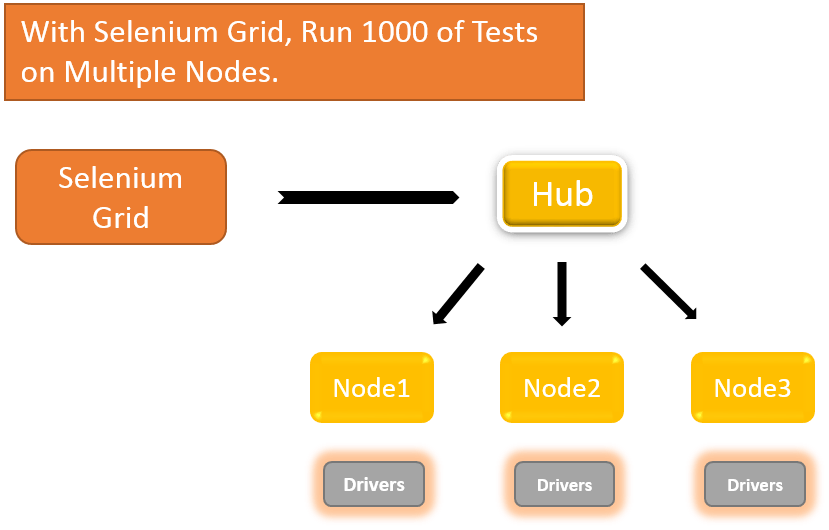
Selenium Grid helped me a lot in Compatibility check (Multiple Browsers & Multiple Platforms).This is grid helps us to execute multiple instances of WebDriver in parallel which uses the same code base (code which is present in only one system), hence the code need NOT be present on the other system they execute. The selenium-server-standalone includes Hub, WebDriver, and Selenium RC to execute the scripts in grid.
Selenium Grid has a Hub and a Node. Each hub may have many nodes.

Hub – The hub can also be understood as a server which acts as the central point where the tests would be triggered. A Selenium Grid has only one Hub and it is launched on a single machine once.
How to start Hub : java -jar selenium-server-standalone-2.53.0.jar -role hub

Node – Nodes are the Selenium instances that are attached to the Hub which execute the tests. There can be one or more nodes in a grid which can be of any OS and can contain any of the Selenium supported browsers.
How to Start Node : java -jar selenium-server-standalone-2.53.0.jar -role node -hub http://192.168.xxxx:4444/grid/register -port 5556

There are few steps to be followed to use Selenium Grid

Step 1 : 
Open command prompt and navigate to folder where the server is located. Run the server by using below command.
java -jar selenium-server-standalone-2.53.0.jar -role hub

The hub will use the port 4444 by default. This port can be changed by passing the different port number in command prompt provided the port is open and has not been assigned a task.
Now open browser and type : http://localhost:4444/grid/console.You will see Grid console.

Step 2 :
Go to the other machine where you intend to setup Nodes. Open the command prompt and run the below line by navigating to the dir where the standalone jar is present.
java -jar selenium-server-standalone-2.53.0.jar -role node -hub http://192.168.xxxx:4444/grid/register -port 5556

Step 3 : Now go to other node which has IE browser and IE driver, Open command prompt and type the below code.
C:\>java -Dwebdriver.ie.driver=D:\IEDriverServer.exe -jar D:\JAR\selenium-server-standalone-2.53.0.jar -role webdriver -hub http://192.169.xxxx:4444/grid/register -browser browserName=ie,platform=WINDOWS -port 5557

Step 4 : Now go to other node which has chromedriver and chrome browser.Type the below code.
C:\>java -Dwebdriver.chrome.driver=D:\chromedriver.exe -jar D:\JAR\selenium-server-standalone-2.53.0.jar -role webdriver -hub  http://192.168.xxxx:4444/grid/register -browser browserName=chrome,platform=WINDOWS -port 5558

Now its time to write the code to execute your testcases in various nodes.Here i am using TestNG framework.Just create a class and paste the following  code.

package seleniumGrid;
import java.net.MalformedURLException;
import java.net.URL;
import java.util.concurrent.TimeUnit;
import org.openqa.selenium.By;
import org.openqa.selenium.WebDriver;
import org.openqa.selenium.remote.DesiredCapabilities;
import org.openqa.selenium.remote.RemoteWebDriver;
import org.testng.annotations.AfterTest;
import org.testng.annotations.BeforeTest;
import org.testng.annotations.Parameters;
import org.testng.annotations.Test;

public class TestGridClass {
public WebDriver driver;
public String URL, Node;
protected ThreadLocal "<"RemoteWebDriver">"threadDriver = null;

@Parameters("browser")
@BeforeTest
public void launchbrowser(String browser) throws MalformedURLException {
String URL = "http://www.calculator.net";

if (browser.equalsIgnoreCase("firefox")) {
System.out.println(" Executing on FireFox");
String Node = "http://192.168.1.3:5556/wd/hub";
DesiredCapabilities cap = DesiredCapabilities.firefox();
cap.setBrowserName("firefox");
driver = new RemoteWebDriver(new URL(Node), cap);
// Puts an Implicit wait, Will wait for 10 seconds before throwing
// exception
driver.manage().timeouts().implicitlyWait(10, TimeUnit.SECONDS);
// Launch website
driver.navigate().to(URL);
driver.manage().window().maximize();
}

else if (browser.equalsIgnoreCase("ie")) {
System.out.println(" Executing on IE");
DesiredCapabilities cap = DesiredCapabilities.chrome();
cap.setBrowserName("ie");
String Node = "http://192.168.1.3:5557/wd/hub";
driver = new RemoteWebDriver(new URL(Node), cap);
driver.manage().timeouts().implicitlyWait(10, TimeUnit.SECONDS);
// Launch website
driver.navigate().to(URL);
driver.manage().window().maximize();
}

else if (browser.equalsIgnoreCase("chrome")) {
System.out.println(" Executing on CHROME");
DesiredCapabilities cap = DesiredCapabilities.chrome();
cap.setBrowserName("chrome");
String Node = "http://192.168.1.3:5558/wd/hub";
driver = new RemoteWebDriver(new URL(Node), cap);
driver.manage().timeouts().implicitlyWait(10, TimeUnit.SECONDS);
// Launch website
driver.navigate().to(URL);
driver.manage().window().maximize();
}

 else {
throw new IllegalArgumentException("The Browser Type is Undefined");
}
}

@Test
public void calculatepercent() {
// Click on Math Calculators
driver.findElement(By.xpath("//a[contains(text(),'Math')]")).click();
// Click on Percent Calculators
driver.findElement(
By.xpath("//a[contains(text(),'Percentage Calculator')]"))
.click();
// Enter value 17 in the first number of the percent Calculator
driver.findElement(By.id("cpar1")).sendKeys("17");
// Enter value 35 in the second number of the percent Calculator
driver.findElement(By.id("cpar2")).sendKeys("35");
// Click Calculate Button
driver.findElement(
By.xpath("(//input[contains(@value,'Calculate')])[1]")).click();
// Get the Result Text based on its xpath
String result = driver.findElement(
By.xpath(".//*[@id='content']/p[2]/font/b")).getText();
// Print a Log In message to the screen
System.out.println(" The Result is " + result);
if (result.equals("5.95")) {
System.out.println(" The Result is Pass");
} else {
System.out.println(" The Result is Fail");
}
}

@AfterTest
public void closeBrowser() {
// driver.quit();
}
}


Now create a xml file and paste the following code


http://testng.org/testng-1.0.dtd
">


Now just run this xml file.You will see the testcases executed in the nodes as well.

If you want to use 3 Firefox, then you should start the node using the <maxInstances> setting
 java -jar selenium-server-standalone-2.53.0.jar -role webdriver -hub http://localhost:4444/grid/register -port 5556 -browser browserName=firefox,maxInstances=3

Conclusion :
  • Selenium Grid is used to run multiple tests simultaneously in different browsers and platforms.
  • To run test scripts on the Grid, you should use the DesiredCapabilities and the RemoteWebDriver objects.

Tuesday, March 8, 2016

Performance Monitoring And System Memory Usage While Running Selenium Test Scripts


import java.lang.management.ManagementFactory;

import java.lang.management.OperatingSystemMXBean;

import java.lang.reflect.Method;

import java.lang.reflect.Modifier;


public class PerfomanceMontior {
private static void getSystemUsage() {
OperatingSystemMXBean operatingSystemMXBean = ManagementFactory.getOperatingSystemMXBean();
for (Method method : operatingSystemMXBean.getClass().getDeclaredMethods()) {

method.setAccessible(true);
if (method.getName().startsWith("get") && Modifier.isPublic(method.getModifiers())) {
Object value;
try {
value = method.invoke(operatingSystemMXBean);
} catch (Exception e) {
value = e;
}
System.out.println(method.getName() + " = " + value);

}
}
}

}